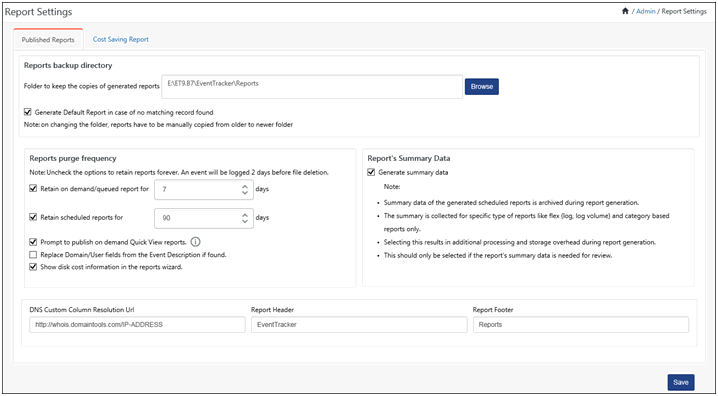
This option helps to configure published reports settings.
1 Click the Admin, and then click Report Settings.
EventTracker displays the Published Reports tab.
|
Field |
Description |
|
Reports backup directory |
Folder to keep copies of generated reports. By default, EventTracker saves the reports in …\Program Files\Prism Microsystems\EventTracker\Reports folder. You can select a different folder as you wish. On changing the folder, manually copy the reports from old to new folder |
|
Generate Default Report in case of no matching record found |
If checked, EventTracker will generate a PDF with the message "No Matching Record Found," if there are no matching records found for the Queued or Scheduled reports. The PDF will be generated irrespective of the report format type. |
|
Reports purge frequency |
Time schedule for the reporter to remove saved ‘On Demand/Queued’ and ‘Scheduled’ reports from the hard disk. EventTracker raises an event (2029) two days prior to deletion. EventTracker displays those events under the All Categories -> EventTracker -> EventTracker: Published reports cleanup Category. Clear the checkboxes to retain all the reports forever. By default, Reporter will retain ‘On Demand/Queued’ and ‘Scheduled’ reports for 7 and 90 days respectively. |
|
Report’s Summary Data |
If checked, EventTracker will create summary data of the generated scheduled report during report generation. The summary is collected for specific type of reports like flex (log, log volume) and category based reports only. |
|
Prompt to publish on demand Quick View repots |
On demand "Quick view” reports are by default not published/saved on hard disk. Selecting this option will prompt you with an option to save/publish the report before closing. |
|
Replace Domain/User fields from the Event Description if found |
By default, EventTracker looks for the following keywords Keywords for Domain: Client Domain/ Domain/ User ID/ Account Domain (2nd Instance) Keywords for User: Client User Name/ Target Account ID/ User Name/ Account Name (2nd Instance) Advanced Reports looks for these keywords in event description. If corresponding key-value is not blank then it will overwrite the original domain/user field with key-value in the display. E.g. Event Domain is NT AUTHORITY. In Event Description Client Domain is TOONS. It will display TOONS instead of NT AUTHORITY If this checkbox is cleared, then EventTracker displays the original domain/user. |
|
DNS Custom Column Resolution Url |
URL to resolve IP address. |
|
Report Header |
Specify a header for the published reports. |
|
Report Footer |
Specify a header for the published reports. |
|
Event Id |
Description |
|
2029 |
Source: EventTracker Description Notification: Report file deletion Following file Logs - created on will be deleted on so, please take back up of the file if required. Event Information Cause : This event is logged when EventTracker On Demand and Schedule reports start purging the published files. |
1 Click the Cost Saving Analysis tab.
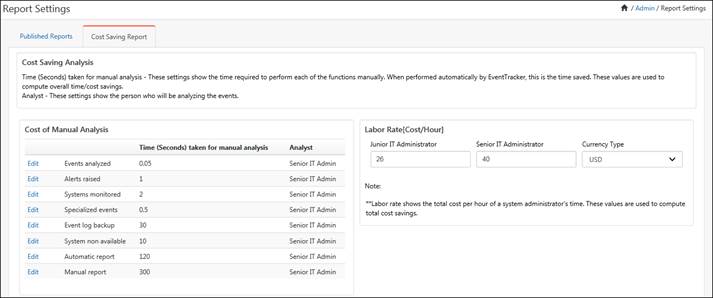
2 Click Edit to modify the Time (Seconds) taken for manual analysis and Analyst field.
Labor rates [Cost/Hour] - Shows the fully loaded labor cost per hour of a system administrator's time. These values are used to compute total cost savings.
Currency Type – Labor cost will be displayed in the selected currency.
|
2 NOTE |
|
Before generating any cost saving analysis, please make sure that Collect cost savings information checkbox is enabled in Admin menu -> Manager -> Configuration (Cost Saving Report).
|