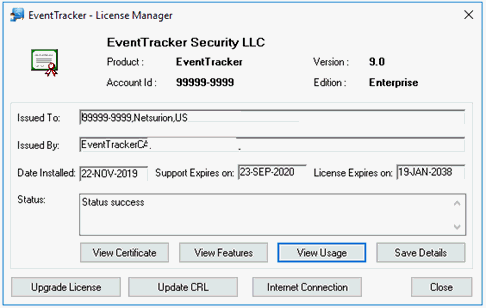
This option helps to upgrade license, view license usage, and update Certificate Revocation List (CRL).
1 Double-click License Manager on the EventTracker Control Panel.
EventTracker displays the Windows Certificate Viewer.
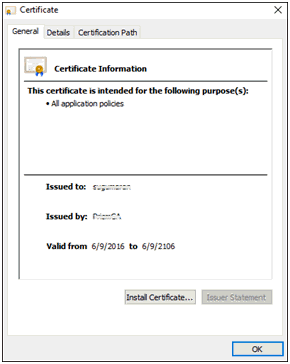
Click Install Certificate button to import certificate to a certificate store.
A certificate store is the system area where the certificates are kept.
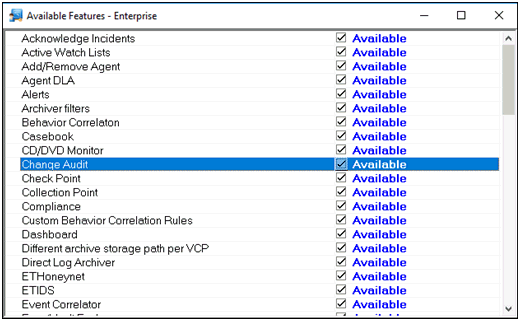
2 Click View Features on the License Manager window.
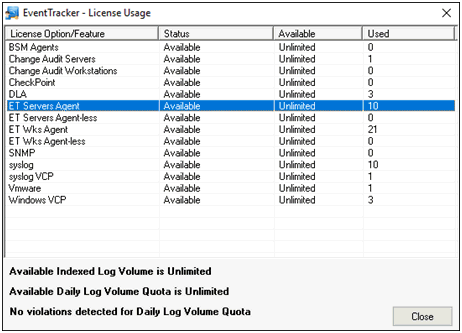
3 Click View License Usage.
4 Click Upgrade License.
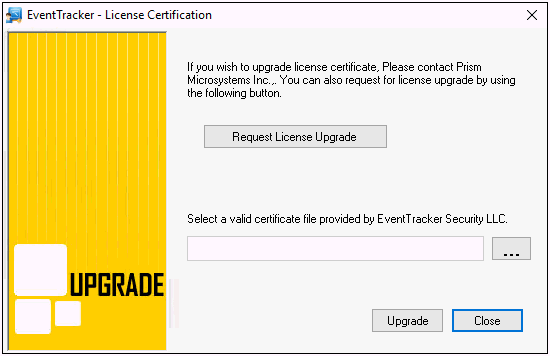
5 Click Request License Upgrade to request a new license to upgrade.
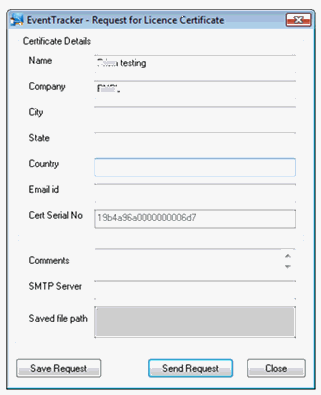
6 Enter appropriate data in the relevant fields.
7 Click Save Request to save the request in Notepad and send it later.
8 Click Send Request to send E-mail.
(OR)
If you already have a license to upgrade, click the browse button.
EventTracker displays the Open dialog box.
Go to appropriate folder and select the certificate file.
Click Open and then click Upgrade.
9 Click Update CRL on the License Manager window.
A Certificate Revocation List (CRL) is a list of certificate serial numbers which have been revoked, are no longer valid, and should not be relied upon.
A CRL, like a certificate, also has a validity date span. The date span ensures that the CRL is not used after a certain time, but also allows the application checking the CRL to cache the CRL so that it doesn’t have to keep downloading it over and over again.
While installing EventTracker, CRL is downloaded to the default install path typically …\Program Files\Prism Microsystems
EventTracker displays the Open dialog box.
10 Select the CRL file and then click Open.
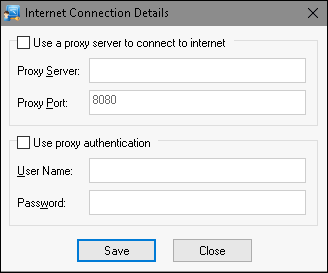
11 Select the Internet Connection button. Enter relevant data and then click Save.
12 To close License Manager, select the Close button.